CrowdRise + Salesforce Documentation
VERSION 2.0
Latest Release Date: Aug 30, 2017*
*We are often updating our Salesforce App fixing bugs and adding features. Please check the "Release Notes" section for the most updated documentation.
Installing the CrowdRise for Salesforce App is easy. Reach out to your CrowdRise contact to request more details about the CrowdRise Salesforce app to get started.
Tip: If you haven’t used the CrowdRise app previously or are planning on using the “Advanced Mode” to import data and have that data become new records in your existing workflow or update existing records, it’s highly recommended that you first install into your sandbox, preferably a full sandbox (partial can work, too) to have a practice go at configuring the mappings.
Once on the listing, click on the green “Get It Now” link.
Next, choose whether you want to install the app into one of your sandboxes (recommended) or your production org.
You’ll be shown various details about the app. You’ll need to first agree to the terms by checking the box next to “I have read and agree…” and then click on the “Confirm and Install” checkbox. After doing so, you may be prompted to log into your sandbox or production org of choice.
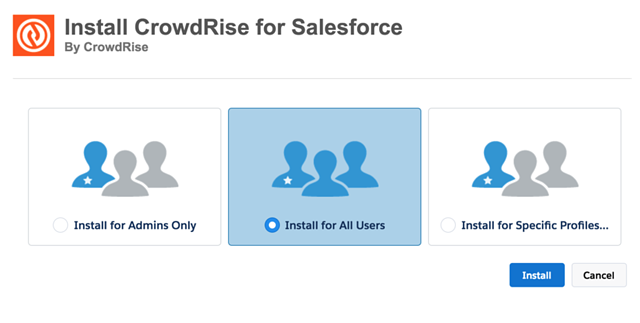
On the next screen, you’ll be asked to choose how permissions are configured for the components in the app. Often, choosing the middle option to install for all users is adequate as other factors in your org, like roles and sharing permissions, will also have control over which users are able to access the imported data. You can always choose to install for admins only and later apply permissions to the necessary Salesforce Users through Profiles and/or Permission Sets.
Click on the “Install” button to continue.
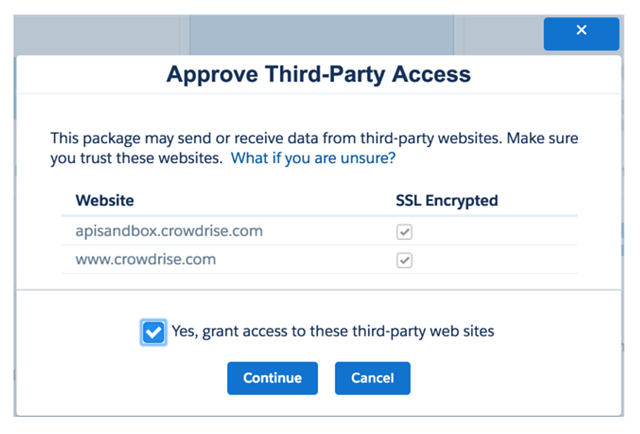
Because the App performs communications between Salesforce and the CrowdRise API, you’ll be prompted to allow callouts to be made to the CrowdRise API endpoints. Check the box next to “Yes, grant access…” message and then click on the “Continue” button.
At this point, the installation process will begin.

After a few moments, you’ll either be prompted with a message that installation has completed or that installation is taking longer than expected and that you’ll receive an email when the installation process has completed.

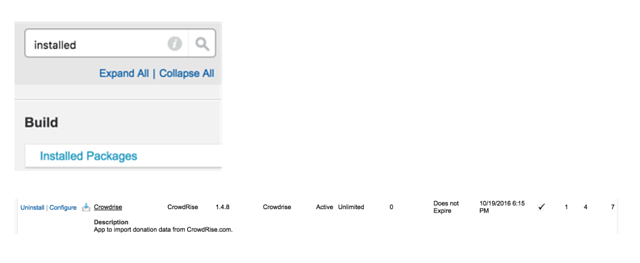
If you’re unsure if the installation was successful, you can navigate to “Installed Apps” under the setup menu and look for “CrowdRise” to be included in the list of installed apps.
After installation, toggle the App menu to “CrowdRise” to display the common CrowdRise App related Tabs.

Click on the “CrowdRise Configuration” Tab to get started. After doing so, the first thing you’ll need to do authenticate your CrowdRise account within Salesforce.
To do so, click on the “Authenticate” button.
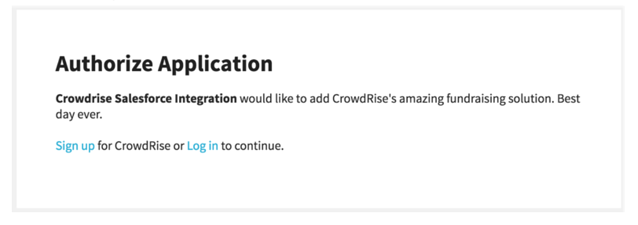
Click on the “Log in” link
Enter your CrowdRise username and password and then click on the orange “LOGIN” button.

Click on the green “GRANT ACCESS” button to confirm that you’d like to allow Salesforce to communicate to the CrowdRise APIs as your user.
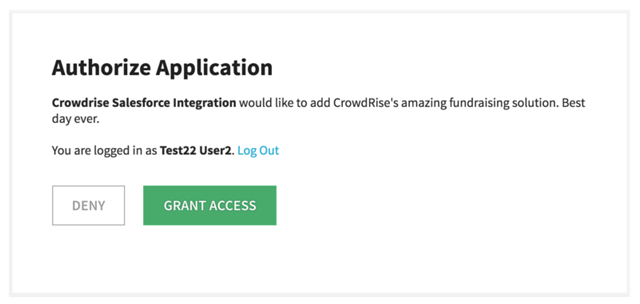
After doing so, you’ll be taken back to your Salesforce organization and you will see that you are now authenticated. Click again on the “CrowdRise Configuration” tab.
Simple Mode is a one-step process where the CrowdRise App imports your CrowdRise data from CrowdRise to Custom Objects that are included with the App.
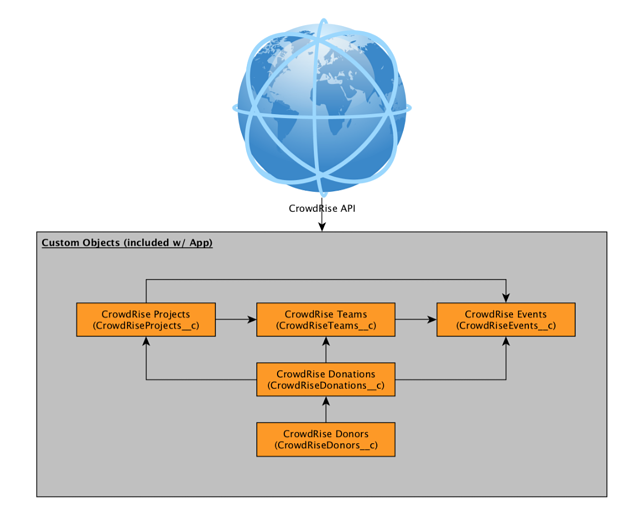
Using Simple Mode, the imported data will not create or update records outside of these objects (e.g., Campaigns, Opportunities, etc). If your org needs the CrowdRise data to create and update other Salesforce object types, you’ll need to enable “Advanced Mode” and define various target Salesforce Object and Field Mappings.
| CROWDRISE ENTITY | SALESFORCE OBJECT | SALESFORCE TAB |
|---|---|---|
| Events | Crowdrise_CrowdRiseEvent_c | CrowdRise Events |
| Teams | Crowdrise_CrowdRiseTeam_c | CrowdRise Team |
| Projects | Crowdrise_CrowdRiseProject_c | CrowdRise Projects |
| Donors | Crowdrise_CrowdRiseDonor_c | CrowdRise Donors |
| Donations | Crowdrise_CrowdRiseDonation_c | CrowdRise Donations |
The “Advanced Mode” takes the integration one step further and helps you merge this data into your existing schema, allowing for the easy matching of existing records and creation of new records, like Campaigns, Opportunities, and Contacts.

Advanced Mode is a two-step process where Step 1 is the same as “Simple Mode.” Once imported and in Salesforce, a 2nd step “processes” the data. Processing of the imported data moves the data from the Custom Objects included in the app to the target Salesforce objects’ records, as specified by you in the app’s object and field level mappings.
Example: Step 1 imports your CrowdRise Donations into the “CrowdRise Donations” Custom Object. Your configuration has specified that CrowdRise Donations should be processed into your Org’s Salesforce Opportunity records. Each “CrowdRise Donation” record is examined and an attempt to pair each up with an existing Opportunity is made. If a matching Opportunity is found, the record is updated. If the record is not found, a new Opportunity is created. Once this is done, the original “CrowdRise Donation” Custom Object record is removed (your CrowdRise data is always maintained). In the event of any errors while updating or creating new Opportunity records, the “CrowdRise Donation” record is updated to include details about the error encountered (see “errors”).
Global and/or app wide settings are found on this page. These include (by section):
Authentication:
Import Options:
Import Time Range for Donations:
Scheduling:
This section gives insight into the records imported via the CrowdRise API. Each row represents a different CrowdRise Entity. The second column displays the number of records created. The “Actions” column displays any options enabled.
Simple Mode:
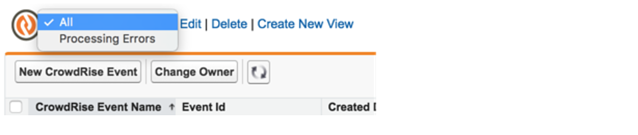
CrowdRise Events, Teams, Projects, Donations, and Donors Tabs include similar Salesforce “Views.”
CrowdRise Logs: CrowdRise log records are created while importing as well as processing takes place. Within the “Advanced” section of the “CrowdRise Configuration” Tab, an option is available to control the granularity of the CrowdRise Logs. “Debug” mode will capture the finest level of detail and should be used when working with the CrowdRise Support team to capture data for troubleshooting purposes. In most circumstances, the “Error” level is sufficient for only capturing details about problems encountered while importing or processing.
The following documentation pertains to the “Mapping Configuration” screen, accessible via the “Configure Mappings” button on the “CrowdRise Configuration” Tab when “Advanced Processing” is enabled.

Target sObject Settings are the high level/object level settings that apply to your selected CrowdRise object.
Each CrowdRise object type can point to a different Salesforce sObject, whether you opt for a standard, out-of-the-box Salesforce object, or a Custom Object that you’ve created or has been created for you via another AppExchange App.
The Salesforce Object selected in this dropdown will be the object searched when checking for existing records and will be the object type used when creating new records when no existing records are found.
Below are the default CrowdRise to Salesforce object mappings:
| CROWDRISE ENTITY | SALESFORCE TARGET OBJECT |
| Events | Campaign (Event RecordType) |
| Teams | Campaign (Team RecordType) |
| Projects | Campaign (Project RecordType) |
| Donors | Contact |
| Donations | Opportunity |
If the object you selected as the “Target Salesforce Object” has and makes use of Record Types, any available Record Types will be displayed in this dropdown. All new records created by the app will be created with this Record Type.

When records of most Salesforce object types are created, there is a default “Name” field that needs to be populated (e.g. the Campaign and Opportunity objects). This setting allows you to have control over how the “Name” field for applicable objects is populated, using a formula field that is constructed the same way you would build a Salesforce email template merge field (i.e., where {!<yourField>} represents a dynamic field to be populated by the value of that field on the record being updated.
The above example uses two merge fields:
It also has static text included as well, a hyphen between the name and id. Any text that isn’t part of a merge field tag is treated as static text and will always be present.
If the formula were to run on a field where:
CrowdRise__Event_Name__c = Summer Fun Run 2017
CrowdRise__Entity_Id__c = 12345
Then that record’s name would evaluate to and result in a record name of: Summer Fun Run 2017 - 12345.
This is a special setting that is only displayed when:
The purpose is to allow each “Donor” that exists as a Lead or Contact to be added to the related Campaign(s) as a Campaign Member.
(Pending v2.3 Release)
Note: If the same individual makes multiple Donations, that Donor’s Lead or Contact record will only be related to the Campaign once. This is native to Salesforce to prevent you from adding the same individual to your various Campaign distribution lists more than once.

Opportunity Contact Roles are a native feature of Salesforce that allows for the identification of individuals that are involved with the Opportunity. How they are related to the Opportunity is defined by the “Role” associated w/ that Contact within these Opportunity Contact Role records.
The CrowdRise app can be configured to automatically create Opportunity Contact Roles for you, based on the resulting Contacts for Donors and/or Project Owners.
These settings are only displayed when:
When enabled, each Donation created as an Opportunity will list the Donor and/or Project Owner within the Opportunity Contact Roles related list, with the role defined for each in the section of Donation mappings, displayed below:
Options for configuring OCRs are found on the Mapping Configuration Page, under “Donations”
This is a special setting that only displays when mapping CrowdRise Donors and the target object is Contact.
The purpose of this setting is to prevent orphaned Contacts, Contact records without a parent Account. There are 5 settings to help control when an Account is created for your Donor Contacts that don’t have parent Accounts.
Don’t Create
This doesn’t do anything to populate Contact.AccountId. Useful for when you have other logic in your org, like custom triggers, Workflow/Process Builder Flow Field Updates, or other packages, that will populate the Contact’s Account.
Per Donor
This will create a new Account for every Donor. A John Smith Donor will have a parent “John Smith” Account. This setting results in the most Account records created.
By Event
To reduce the number of Accounts created, but ensure that Donor Contacts have a parent Account, all of the Donors related to Donations will be related to a single Account. Each Event will have a maximum of 1 Account record used for any Donors making Donations under that Event that don’t already have an Account. The resulting Account might be named something like “Summer Fun Run 2017,” named after the Event.
By Team
Same logic as the above, but a single Account for each Team. All the Contacts that need parent Accounts that belong to the same CrowdRise Team will have the same parent Account. A resulting Account might be named something like “The Fun Runners” named after the Donors’ Event’s Team.
By Project
Same logic as above, but the next level down (keeping in mind that Projects are children of Teams, which are children of Projects). This results in less Accounts that the “Per Donor” but more than either “By Event” or “By Team.”
In Salesforce, it’s entirely possible that your CrowdRise Donors exist as Leads and/or Contacts (and/or Person Accounts, if enabled, too), depending on your business logic. Whenever the app is attempting to match existing records, this settings allows you to control which type of record should be used, in the event that both a Lead and Contact are identified.
The object on top will be used first.
In the above sample, if our “John Smith” Donor exists as both a Lead and a Contact, the Contact will be used for all field relationships within “Map Lookup Fields” and the “Map Lead/Contact Lookup Fields” mappings.
Records are imported from CrowdRise into Salesforce through a series of batch jobs. Sometimes, logic that exists within your org won’t be compatible with these batch jobs and result in Salesforce system limits being exceeded. This can come from custom logic and Apex code you’ve written for your org or logic within another AppExchange app.
In the event that this logic doesn’t work well with the default batch size of 200 records at a time, you can throttle the number of records being processed by using this setting, down to the point of batches processing single records.
Keep in mind that the lower the number, the more batch job iterations will be required to process all of your data. More batch job iterations results in longer import job durations.
This minor release was primarily focused on supporting a new field supported by the API, the Recurring Donation field.
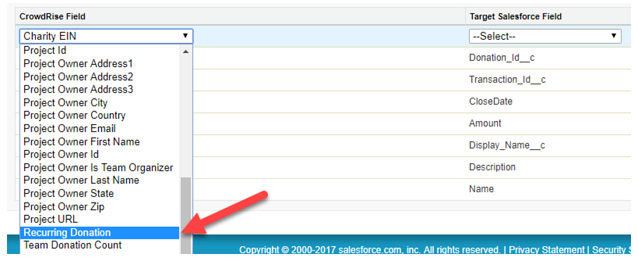
The current version supports importing the “Recurring Donation” field. It will be stored in the IsRecurring checkbox field on the Donation Import object, as shown here:

This field can be mapped to any checkbox field you like on the object that you are processing your Donations to (by default this is Opportunities).



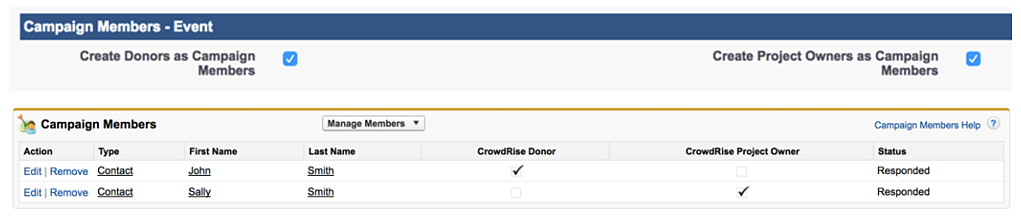
In previous versions of the CrowdRise app, Project Owner details were only mappable as part of the Project level mapping. Data points like Project Owner first name, last name, and email address could only be mapped to fields on the Project’s target Salesforce object.
This version keeps that functionality, but also allows you to map Project Owners as their own entity, targeting either Salesforce Leads or Contacts, just as you currently do for Donors. Within this object level mapping, you have the ability to map all Project Owner related data points such as:


The “Import Results” or “Records Pending Processing” table now include “Project Owner”

Note: This object will not be enabled upon upgrade for existing customers. Customers installing the app for the first time will have this option enabled by default.
When your mapping configuration targets Salesforce Opportunities for CrowdRise donations, there has always been the option to let the app create Opportunity Contact Role records to relate the Donor’s Contact to the Opportunity Donation. When enabled, the Opportunity Contact Role record’s Role value was always set to “Donor.”
Starting with this version, the following enhancements are included:
The ability to create OCR records for Project Owners gives many customers, using NPSP, the ability to leverage CrowdRise data within their NPSP nightly calculation of Soft Credits. To do this, simply configure the “Role” defined for the Project Owner OCR to be one of the Roles included in your NPSP Soft Credit defined roles.
For more details on this feature, see this section.
A new field mapping at the Donation level, named “Charity Name” has been added to allow customers to map a Donation’s Charity Name to their field of choice in Salesforce for the configured Donation Target Object. This field can also be used for Charity Aliases/Chapter Codes. For more details on these advanced usages, please contact CrowdRise support.
This is not mapped by default upon upgrade for existing customers or first install for new users of the app.
Creating the new mapping for Charity Name
